Study time
How to use a calendar to predict your study load
See studies and each cycle’s next review in Calendar. Learn to inspect a day, schedule and reschedule.
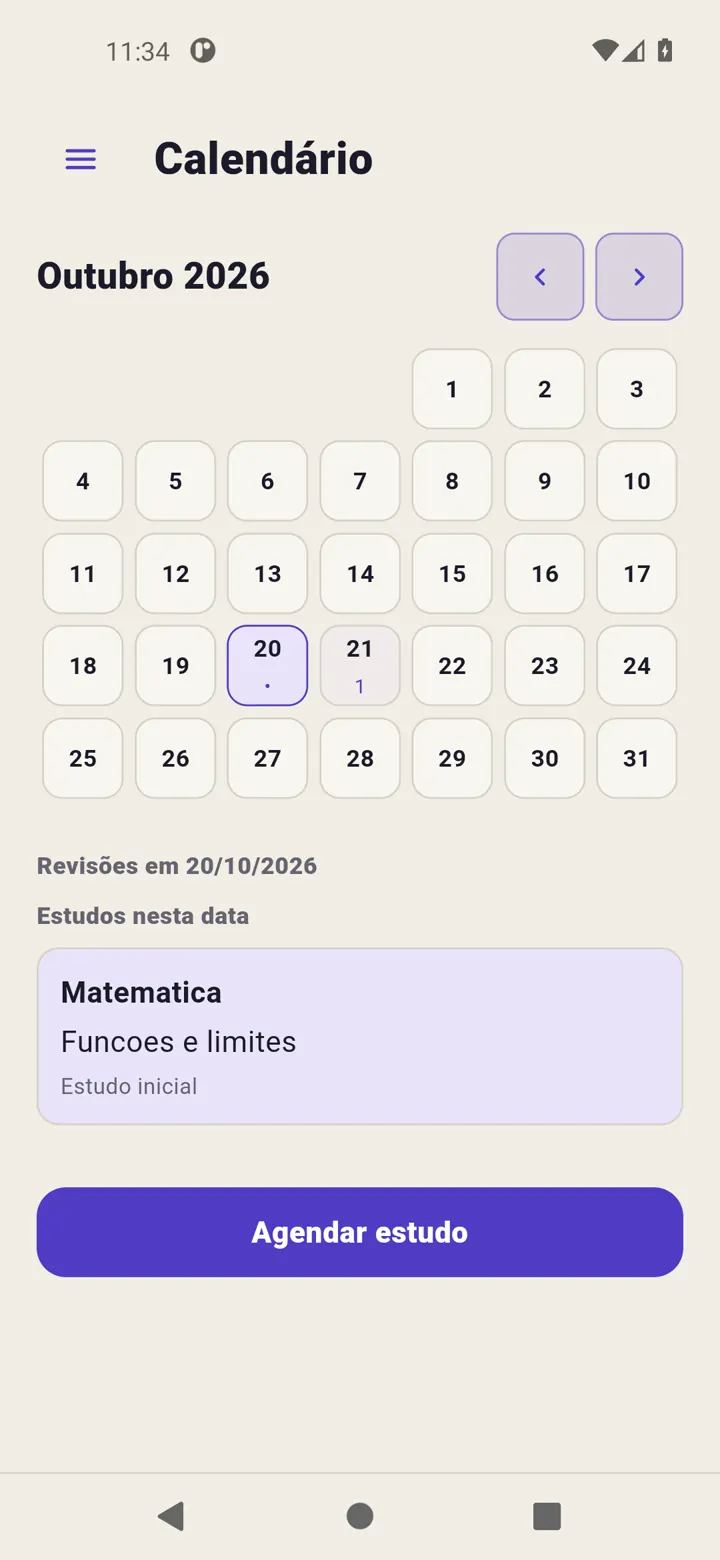
Revisync’s Calendar shows scheduled studies, study records and each active cycle’s next review. Check a day’s activity list before adding another session.
Inspect the week in the app
Open Calendar from the menu and select a day. Its activities appear below the grid. Use the arrows beside the month to navigate.
A number counts next reviews; a dot without a number indicates study. A day can contain both. Select it to check actual titles rather than relying on the mark alone.
It shows the next step
A cycle appears on its next executable review date. All remaining steps are not projected at once: completing the current review reveals the following one. An unmarked distant day does not mean no review will ever fall there.
Schedule a session
Select today or a future day and use Schedule study. Enter subject and content, choose review mode and confirm the date. It remains pending until marked completed. Choose No reviews to plan without returns.
Adjust without fictional completion
Use Reschedule review on a card to change its next date. To change every cycle of a type, use Settings → Schedule and notifications. These are separate decisions.
Follow the Calendar guide.